








Transaction Center
Time to bring it home. Find zipForm®, transaction tools, and all the closing resources you'll need. Except for the champagne — that's on you.

Time to bring it home. Complete transactions and contracts electronically through zipForm®.

Realtor® Secure Transaction is your place to discover, access and master the essential tools for a modern, efficient and secure transaction.
Transaction management and forms software with all the must-have features, including current statewide contracts, local forms, and more.
Service Providers Forms LibrariesFree advice to help you understand the form you're using with Forms Tutor®.
C.A.R. Standard Forms are developed by the C.A.R. Legal Department which gathers input from real estate professionals and attorneys to create user-friendly, comprehensive, and dependable forms.
C.A.R.'s Transaction Coordinator directory lists real estate professionals who meet strict requirements, including completion of C.A.R.’s 17+ hour Certified TC program.
Your one-stop-source for exclusive offers, discounts, and free trials.
Everything you need for a successful property management & leasing business
A collection of educational and technology resources designed to help you achieve profitability and better prepare for your financial present and future.
Ever wish you could have an attorney to help you navigate your deals? You can! Learn more about how the attorneys of C.A.R.’s Legal Services group can support you in your business.
Legal articles, many in question and answer format, are currently available on over 150 subjects in 50-plus categories.
New Laws Affecting REALTORS®
Six charts show REALTORS ® what needs to be disclosed and to whom in various sales and lease scenarios.
Quick Guides (1-page articles) and PowerPoint presentations on key legal topics.
Wish you could catch up on California real estate law without having to read even more documents? Relax and watch a video as C.A.R.’s Legal Live Webinars bring you up-to-date on the hottest topics in real estate law.
Driving to your next meeting? Let our attorneys update you on how to protect yourself and your clients. Subscribe to the Legal Matters Podcast and get the most critical information delivered right to your device.
The Legal Action Fund advocates the REALTOR® point of view and assists in lawsuits pivotal to the real estate industry. Learn more about how the Legal Action Fund supports you in your business.
Important industry cases, resources and information
Current legal developments, C.A.R. legal products and services.
Realegal®Help, I need backup! Whether it's legal or financial help you need, C.A.R.'s got your back with these resources.

If you're a member looking to resolve a minor dispute or communication issue with another REALTOR®, a C.A.R. ombudsman may be able to help!
Want to receive information and limited counseling on the proper interpretation of the Code of Ethics? Get your questions answered by specially-trained C.A.R. REALTOR® volunteers.
Your lifeline to the lending community, formerly the Finance Helpline and Mortgage Rescue™. Find contacts and answers to all mortgage questions and transaction issues. Get help today!
Need assistance on Transactions – zipForm Edition, purchasing a course, or other general membership questions? The Customer Contact Center is only a phone call away.
The helpline offers your clients resources on homeowners insurance carriers, escrow impounds, the Calif. FAIR Plan, inspections, disaster relief, and assistance with closing transactions.
The C.A.R. Dispute Resolution Center for Real Estate has mediators to assist buyers and sellers (as well as other parties to real estate transactions) in resolving their disputes.
Did you know that for zero dollars and zero cents, you can speak with an attorney about your transaction? If you don't believe us, check it out yourself.
We offer a wide array of real estate educational courses, certifications & designations in various formats.

Easily renew your real estate license with the FREE 45-hour online license renewal package from C.A.R.
Prepare to earn your real estate license with our online courses. Get your California real estate license with OnlineEd. DRE-approved. Start immediately!
Browse our class schedule to find when and where to take real estate courses.
Online Bundles Designations / CertificationsComplete your eight-hour NMLS license renewal requirement through our NMLS-approved provider, OnlineEd
The main Business Meetings page provides key links for Directors and Committee Members. The next C.A.R. Business Meeting is scheduled for January 19-22, 2027 in Anaheim.
Business Meeting ProgramCheck out NAR's upcoming meetings and conference schedule.
REimagine!® Real Estate Conference & Expo is where learning takes center stage and where business solutions and connections are at the forefront of the real estate industry.
Learn how to schedule a C.A.R. outreach speaker for your next event and access presentations from previous outreaches.
OutreachesYour one-stop calendar for C.A.R. and industry events.
A one-stop shop for tools and and resources to educate consumers about the intricacies of buying and selling a home and how a REALTOR® can help.
Down Payment Resource Directory Infographics Tax Reform One SheetsExplore and interact with the latest market statistics.
Housing Market Summary County Market Updates Impact of LA Wildfires Market at a GlanceC.A.R.'s shares videos from its consumer ad campaign and customizable digital content to enhance member marketing.
Got knowledge? All the info you need on California’s housing market, economy, and issues impacting the industry.

This information is designed for Real Estate Brokers and Office Managers to assist you in supporting your real estate business.
Discover homeowner insurance resources from C.A.R. to help navigate California's wildfire-related insurance crisis. Access expert-led webinars, podcasts, and support tools for both REALTORS® and consumers seeking guidance on maintaining or finding coverage.
We provide information and resources to support Real Estate Team Leaders in navigating their roles and ensuring compliance.
CCRE's mission is to advance industry knowledge and innovation with an emphasis on convening key experts and influence-makers.
From webinars to videos and podcasts to blogs, C.A.R. keeps you in the know.
Videos Webinars PodcastsC.A.R. publishes various newsletters throughout the year. Formerly, C.A.R. also published a magazine, for which past issues are still available.
Get a roundup of weekly economic and market news that matters to real estate and your business.
Housing PerspectiveView the latest sales and price numbers. Find out where sales will be in upcoming months.
Housing Market ForecastYour housing hub for market analysis, economic trends, and housing news.
Gain insights through interactive dashboards and downloadable infographic reports.
Catch up with the latest outreaches and webinars by the Research and Economics team.
C.A.R. conducts research with members and consumers on a regular basis to get a better understanding of the housing market and the real estate industry.
California Model MLS Rules, Issues Briefing Papers, and other articles and materials related to MLS policy.
Looking for information on how to file an interboard arbitration complaint? You've come to the right place! Find the rules, timeline and filing documents here.
Information for members who serve as volunteers in C.A.R.'s Professional Standards programs
Missed a training? Check here for previous Professional Standards webinars.
Summaries and photos of California REALTORS® who violated the Code of Ethics and were disciplined with a fine, letter of reprimand, suspension, or expulsion.
The most recent edition of the Code of Ethics and Standards of Practice of the National Association of REALTORS® along with other important links to NAR information.
Find the tools and information needed as a Professional Standards Administrator
Professional Standards Annual Film FestivalAn industry that works together, thrives together. Participate in legislative advocacy as a C.A.R. member!

Mortgage toolkit, Fannie Mae, banking and more.
Updates on C.A.R.'s legislative advocacy efforts in Sacramento.
Ballot MeasuresIssues briefing papers, handbooks and other background materials on local policy issues that affect real estate.
CREPAC, LCRC, IMPAC, ALF and the RAF comprise C.A.R.'s political fundraising arm.
REALTOR® Action Assessment REALTOR® Action FundLearn how you can make a difference, by getting involved yourself or by passing along valuable information to your clients.
Californians for Homeownership was founded in response to the Legislature’s call to fight local anti-housing policies and expand affordable housing for millions of Californians.
CARES is C.A.R’s philanthropic framework to amplify the work, coordinate fundraising and broaden support of C.A.R.’s four charitable causes – Housing Affordability Fund, Scholarship Foundation, Education Foundation, and Disaster Relief Fund.
Disaster Relief Fund Scholarship FoundationFind out more information on key diversity and inclusion programs and projects available.
Fair Housing Latino Professionals Network WomanUP!®New to the industry? YPN is a network to sharpen your skills, heighten your leadership, and connect with fellow REALTORS®.
Rising StarAdding REALTOR® next to your name is cool. What comes with that title is even cooler. Check out your benefits.

Download and share the official 2026 C.A.R. Member Benefits Guide.
NAR Member Discounts C.A.R. Insurance ProductsAs a C.A.R. member you may have questions about your association and the industry. Find the answers here.
Member FAQs Glossary Service ProvidersC.A.R. provides tremendous member value through its innovative tools, services and education. Learn more about C.A.R. membership and dues and NAR membership and dues.
C.A.R.'s annual consumer advertising campaign creates awareness of the REALTOR® brand and demonstrates the many benefits of the consumer-REALTOR® relationship.
Smart Zone provides tools and insights necessary to convey your unique value proposition, effectively market your services, keep your clients abreast of current real estate market trends and help you achieve success in a dynamic industry.
Meet the 2027 C.A.R. Leadership Team
C.A.R. is a statewide trade association dedicated to the advancement of professionalism in real estate.
Annual ReportThe CALIFORNIA ASSOCIATION OF REALTORS® is committed to bring you tools and information to help you succeed. Here are some of the innovative tools, services and education C.A.R. provided to help you achieve your professional goals.
C.A.R.'s Media Center houses the Association's news releases, media guidelines, and logos.
News ReleasesDiscover rewarding job opportunities, a collaborative work culture, and meaningful ways to make an impact on an industry that matters.
Partner With Us
Learn about advertising with C.A.R.
Whichever department you are looking to speak with, don't hesitate to reach out! We'd love to hear from you.

Need help finding the right person? Try searching through our various rosters & directories.
Time to bring it home. Find zipForm®, transaction tools, and all the closing resources you'll need. Except for the champagne — that's on you.
Take your professional development up a few notches. Here you'll find educational materials, marketing tools, training videos, and more to keep you on top of your game.
We want you to feel like a champion every day. Find information on market data, government affairs, legislation, and trending industry issues.
We're here to support you in every way possible. Learn more about your discounts, benefits and how your C.A.R. membership can help you succeed.
CARES is C.A.R’s philanthropic framework to amplify the work, coordinate fundraising and broaden support of C.A.R.’s four charitable causes – Housing Affordability Fund, Scholarship Foundation, Education Foundation, and Disaster Relief Fund.
Disaster Relief: Grant Programs & Resources Scholarship FoundationWelcome to our search engine guide. This comprehensive guide will help you understand how to use the car.org search engine to its fullest potential, ensuring you can quickly and effectively find the information you need. With the help of AI technology, our search engine will continuously enhance your experience by utilizing intelligent search ranking to prioritize results other visitors have found helpful. However, there are many other features you can utilize to help locate your target content fast and efficiently. Let's dive in!
Getting Started
Visit our search page and begin by simply typing a search phrase in the provided search bar located at the top of our search page. Our search engine's smart search technology will immediately start suggesting popular phrases or keywords that match your input. This predictive search feature will guide you to the right content you’re looking for even faster results.
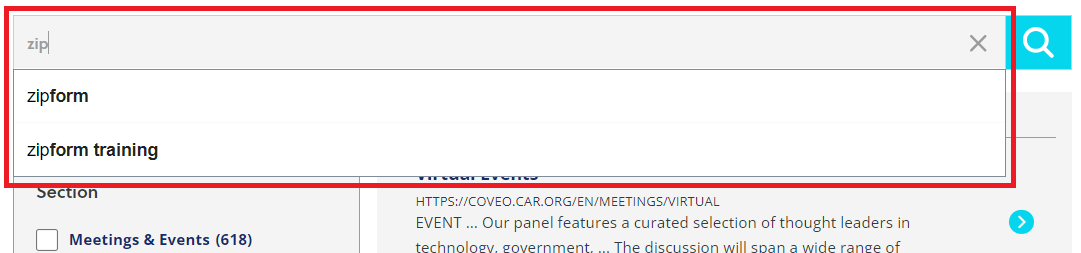
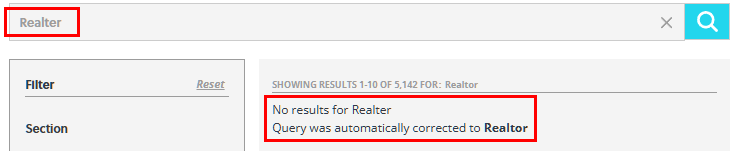
Made a typo? No problem. Our search will automatically guide you to the correct results or alert you to the correct spelling of your search term. This feature ensures that misspelled words don’t stand in the way of finding the right content. Whether you spell it zipForm, zip Form, Zipforms or even Winforms, we have you covered. Our search engine is designed to be intuitive and user-friendly, providing a seamless experience from the moment you start typing. By leveraging smart suggestions and auto-correct functionalities, you can quickly and easily find the information you need, without being hindered by typos or incorrect search terms.
Icons
Our search uses a variety of icons to help you quickly identify content properties in your search results:
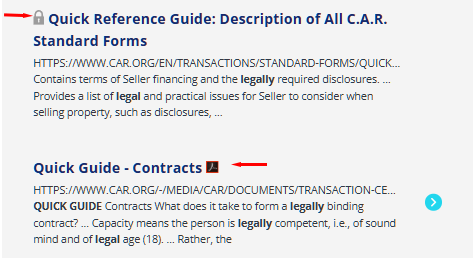
A padlock icon next to a search result indicates that this page is password protected and is a visual cue to remind you that you must have an account on car.org to access this page. The icon will not appear if you are currently logged into car.org.
Documents in the search results are marked with their respective icons to help you identify them at a glance. For example: a PDF Icon will appear when the content item is a PDF document.
Filters
To make your query more precise, we offer a robust search results filtering system. After entering your search query, you can use various filters to narrow down the results. These filters allow you to specify the type of content you’re looking for, such as articles, documents, magazines, legal Q&A, Infographic or videos. You can also filter results by content appearing in one or more sections of our website or by the date the content was published.
Use the filters appearing on the left side of the search results to refine your search according to attributes such as section, content type, date, and relevancy. Next to each filter in parentheses is the number of results available. Whether you're seeking specific content within a particular timeframe or focusing on a specific content type, our filtering options provide the flexibility you need to tailor your search results to your exact requirements. Click the relevant check box(es) to activate your filter of choice.

Search Tips
If you are unable to find the correct search result, be sure to reset any activated filters by clicking the Reset button. Use more general terms before narrowing down search results with filters.
Check the spelling of your search query, try to broaden your search term or try different search phrases.
Eliminate common distractions from your search results by removing common words such as "and," "the," and "of" to focus your search on relevant keywords without unnecessary clutter.
If you're still unable to find the right content, let us know and we'll be happy to assist you.
Need help? View our self-help resources or contact us. For website feedback, send us a message using this form.